
Features
Everything the launcher does. Honestly described.
Where something depends on your box or needs a system install, it says so right next to it, not in a footnote.
Labels:new in 2.19new in 2.20system installif your box supports itcan be turned off
Home screen
Everything that matters, at a glance.
A large, thin clock, your apps and a few icons that tell you all is well. Nothing shouts at you.
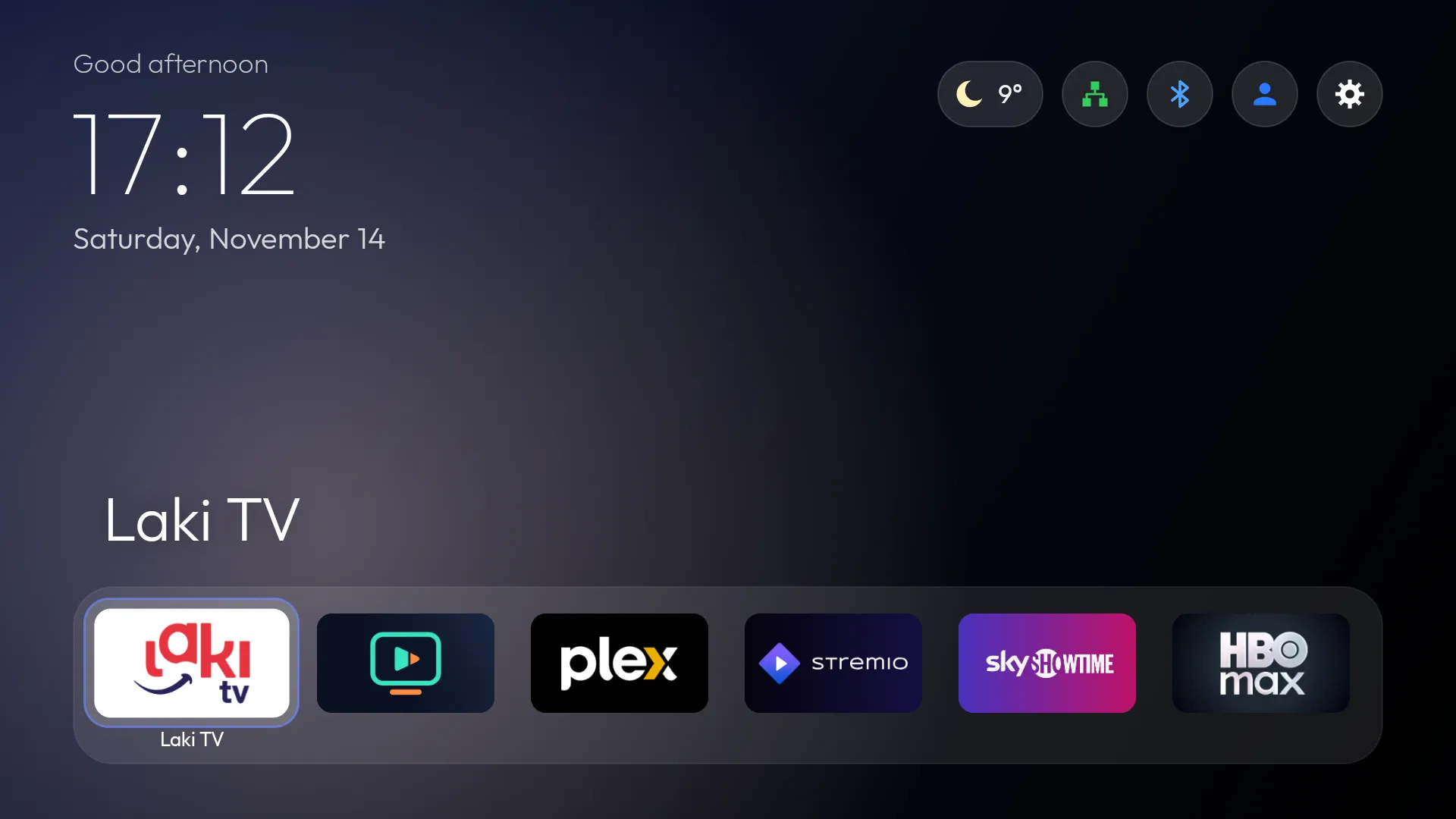
- Clock: digital 24h, digital 12h or analognew in 2.19
- Date and a time-of-day greetingcan be turned off
- A dock with 6 favorite apps, or 12 in two rows (set per profile)
- Replace and reorder dock apps freely
- The focused tile grows slightly and shows its name below
- A glass focus frame that glides from tile to tile
- Focus color from the theme or your pick: white, blue, green, orange, pink, purple, yellownew in 2.19
- A glow behind the title in the focused app’s colorcan be turned off
- Status icons: weather, network (LAN or Wi-Fi, green when connected), Bluetooth (blue when a device is connected), profile and settings
- A dot on Settings when a new version is outnew in 2.19
- System stats: RAM, CPU, chip temperature and network speed (auto, KB/s, MB/s or Mbit/s)can be turned off
Preview and Continue watching
See what’s inside before you open an app.
As you move through the dock, the focused app shows what it has above it. Press OK to jump straight in.
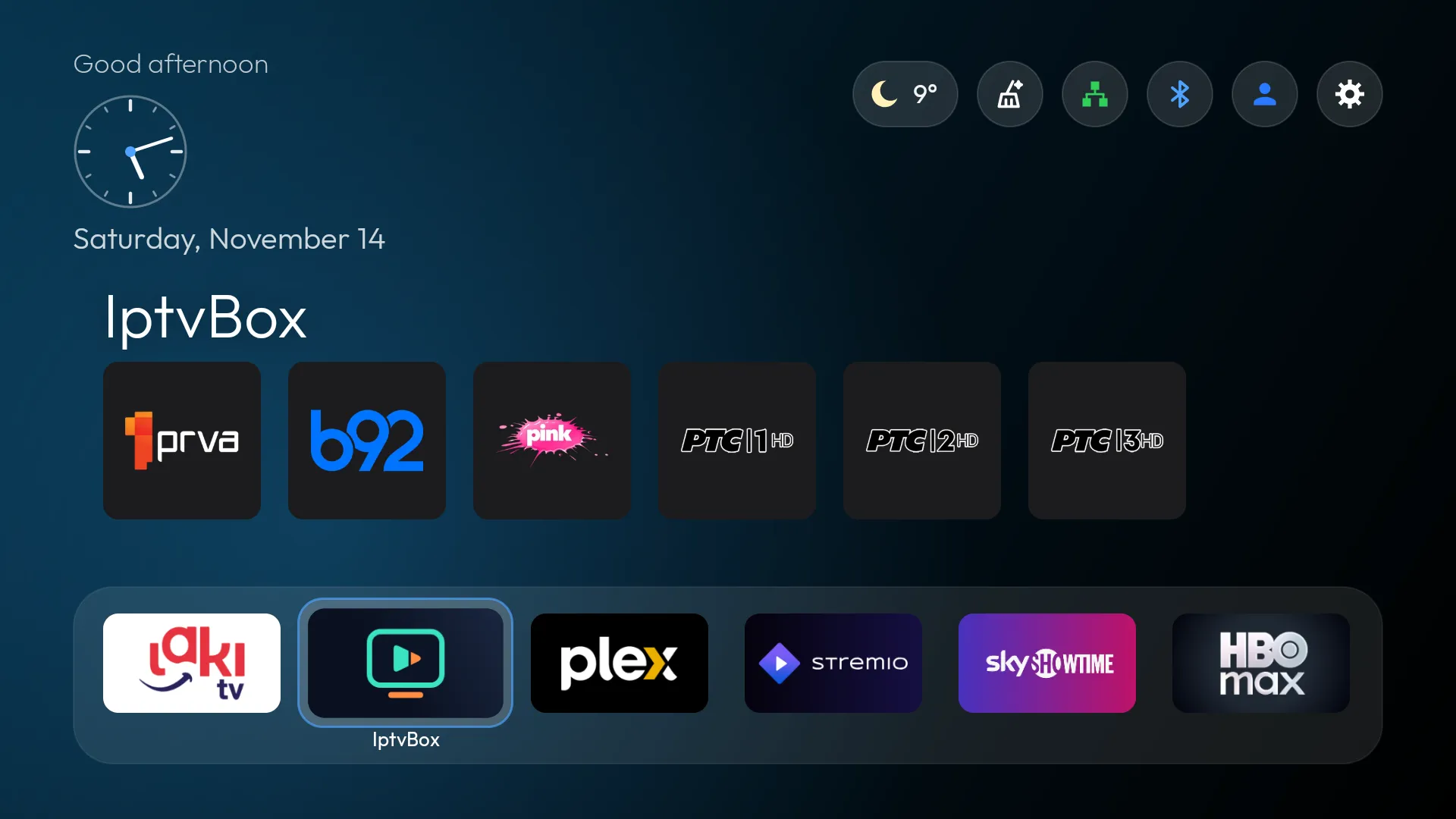
- Preview row: movies, episodes and channels from the app’s Android TV channels, with posters
- Content from every app in the Preview rowsystem install
- With two dock rows, cards get smaller so everything fits
- Continue watching: what you started, from every app, in one row
- Remove any item from Continue watching
- New content badge: a dot on an app when it has published something new since you last opened itnew in 2.19can be turned off
Preview shows only what an app publishes in its Android TV channels. Some apps don’t, so their row stays empty. To show content from every app, the launcher has to be installed as a system app.
All apps
Any app, in seconds.
A grid of every installed app, with TV banners where available. Search, sort and hide apps your way.
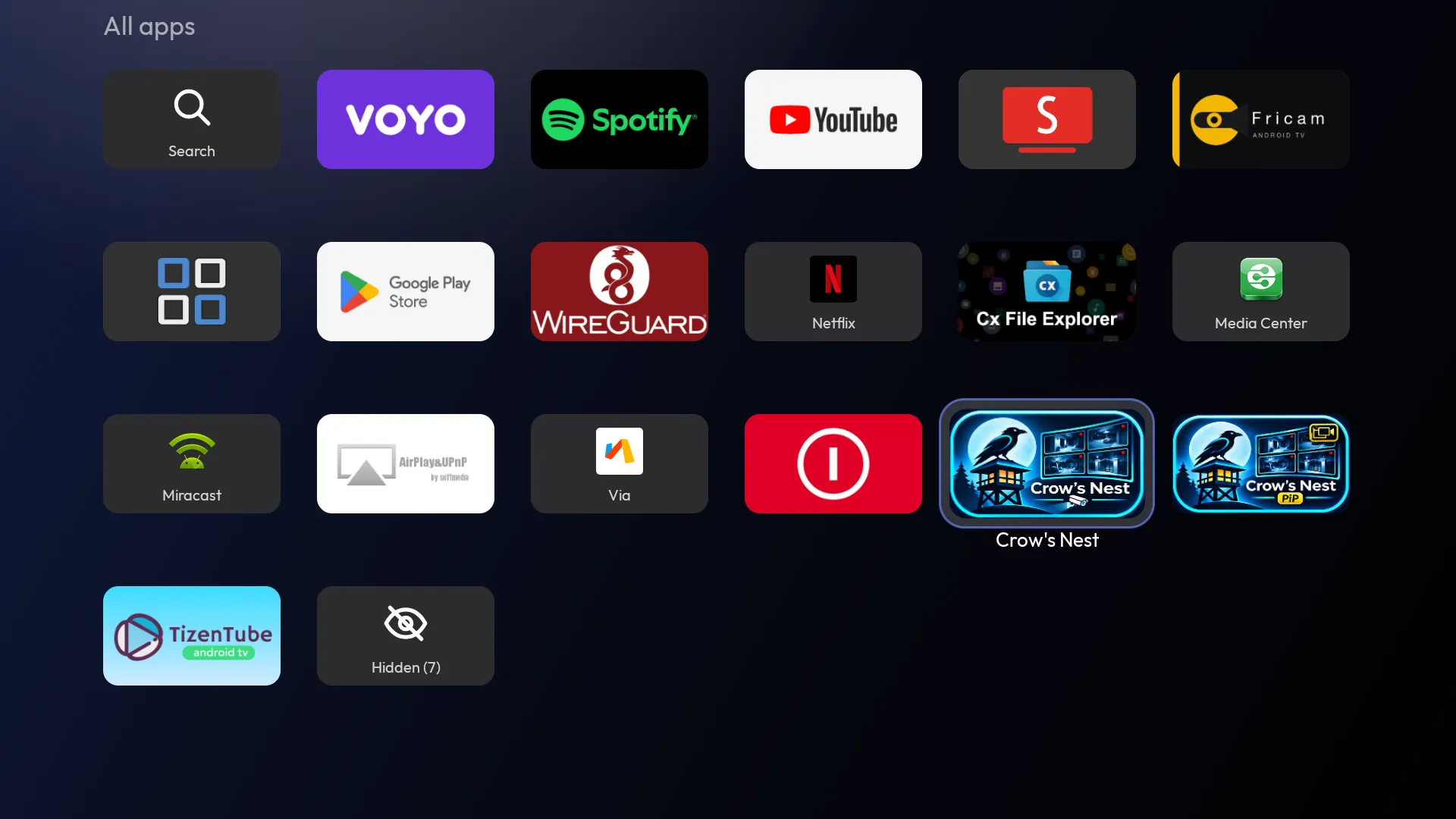
- Search: a tile at the start of the grid; filters as you type, with results above the keyboard
- Search ignores diacritics
- The SEARCH key on your remote opens searchif your box supports it
- Voice searchif your box supports it
- Order: alphabetical, most used, or manual
- Move mode inserts a tile and shifts the others
- Hide apps, and bring them back from the “Hidden” tile
- App menu (long-press OK): open, move, replace or add to dock, hide, info, uninstall
Weather
Weather, with no account and no key.
The forecast in one click, without opening a single app.
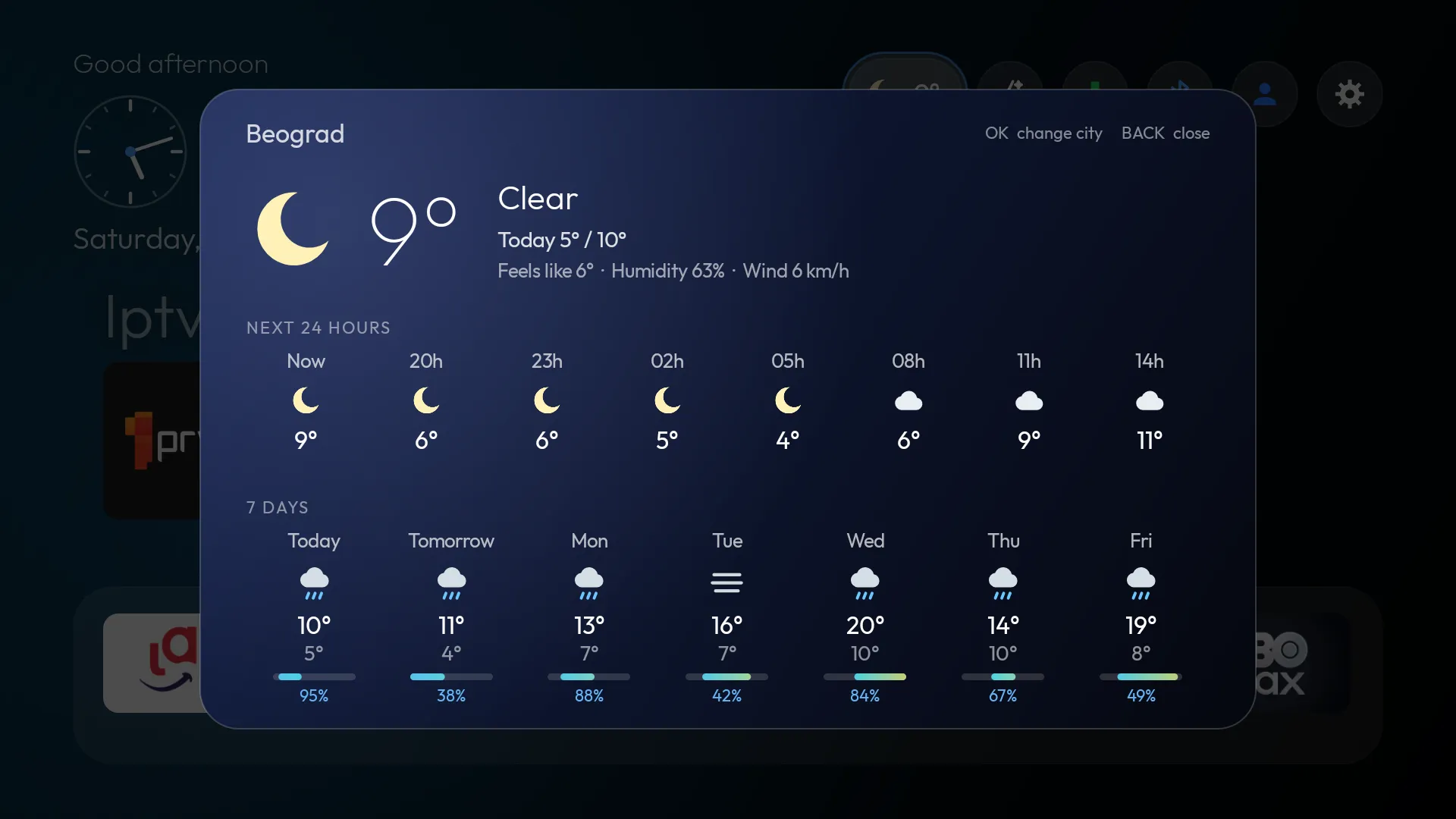
- Current conditions, the next 24 hours and 7 days
- Pick your city from a list of cities
- Three card styles
- Data from Open-Meteo, with no account or API key; only your chosen city’s coordinates are sent
Profiles
Everyone gets their own TV.
Local profiles like “Mine,” “Family” and “Kids,” with 8 colored icons always on the home screen.
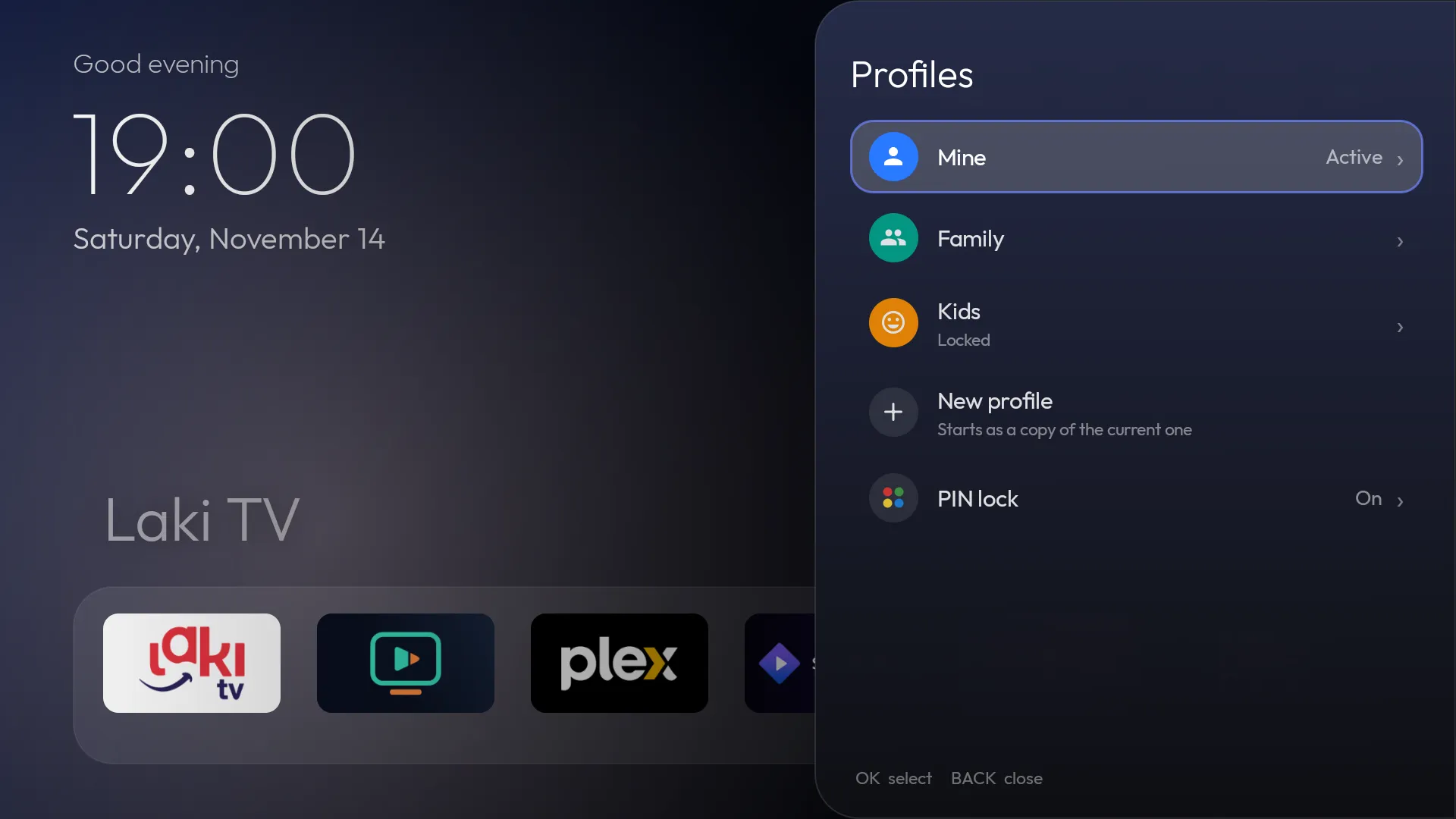
- Each profile has its own dock and number of dock rows
- Its own app order and hidden apps
- And its own theme
These are launcher profiles. They aren’t Android users and don’t separate accounts inside apps: your YouTube history, for example, stays shared.
PIN lock
Kids see only theirs.
One PIN of 4 to 8 digits for the whole launcher, and you decide where it’s asked.
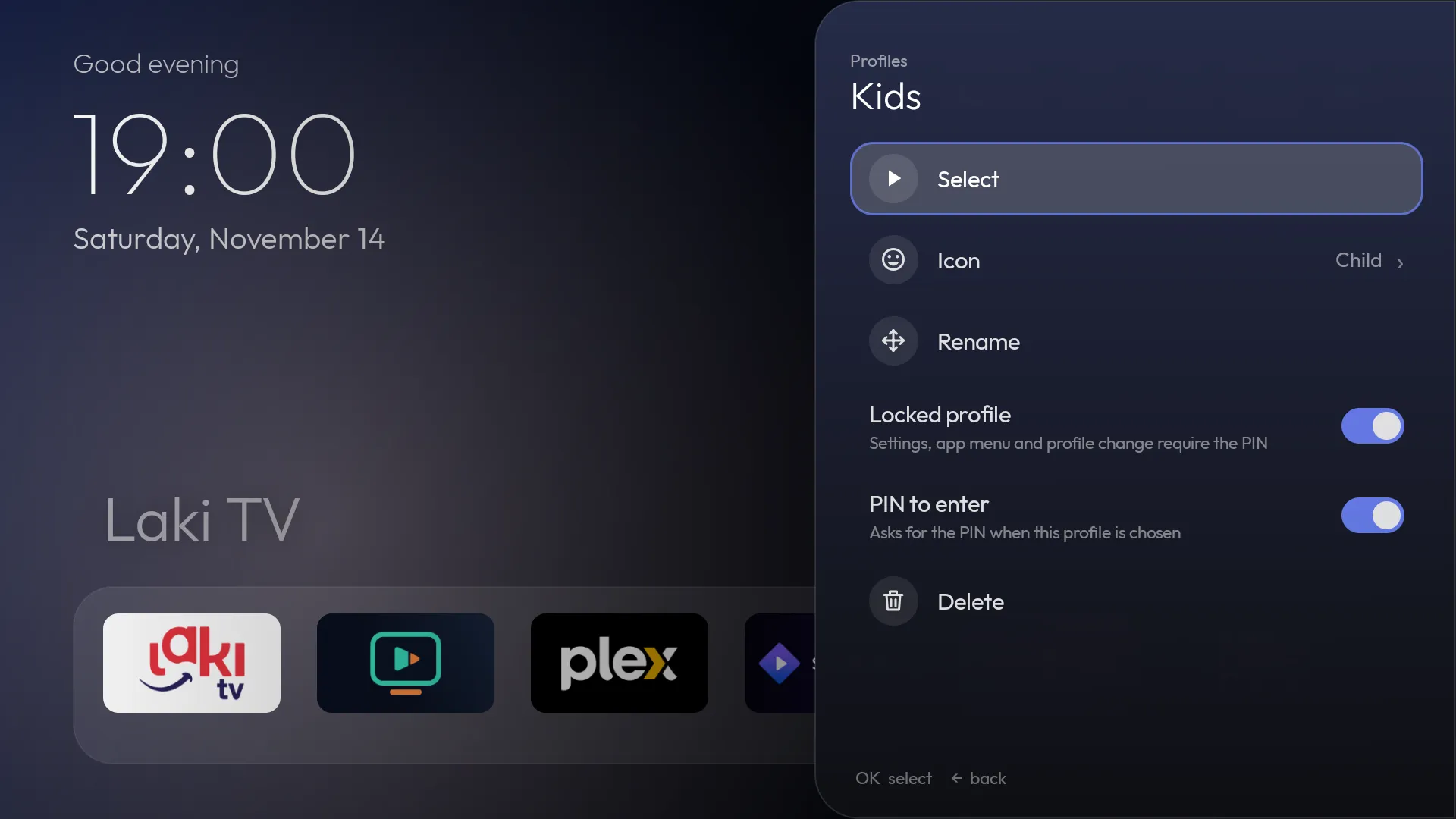
- Locked profile: while it’s active, settings, the app menu, profile change, network, Bluetooth and hidden apps ask for the PIN
- PIN to enter: the PIN is asked when the profile is chosen
- The PIN window shows which profile it’s asking for
- After the right PIN, the launcher stays unlocked for 5 minutes or until an app opens
- Five wrong attempts pause input for 30 seconds
- The PIN is stored only as a salted hash and never goes into a backup
Backup and restore
Backup in thirty seconds.
Your whole setup in one ZIP. A new box or a reset no longer means an hour of setup.
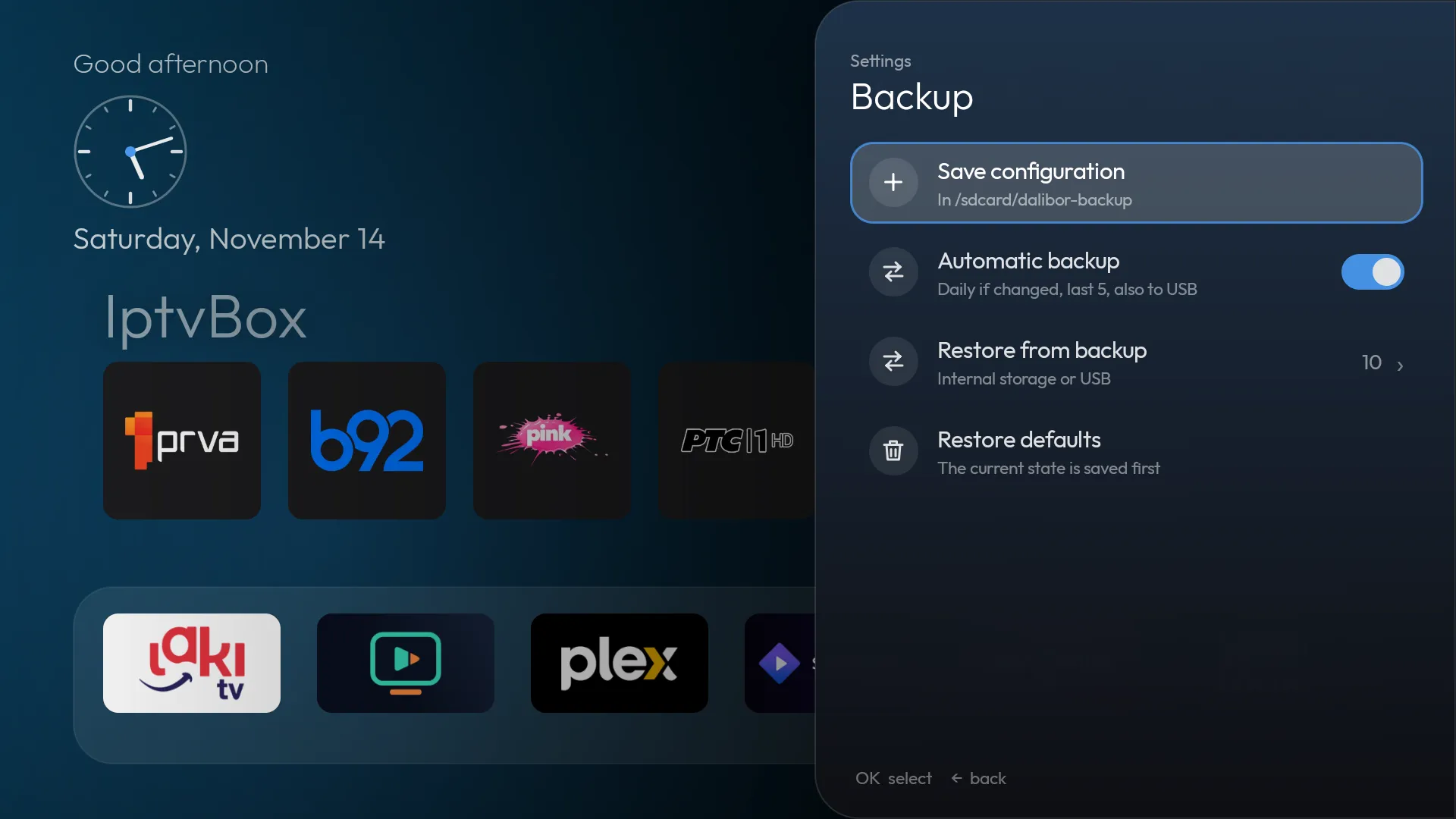
- One-click export of the whole configuration to a ZIP, with the current wallpaper
- Restore from internal storage or USB
- Before restoring, see which apps are missing on the device; they’re simply left out of the dock
- Your current setup is saved automatically before every restore
- Automatic daily backup when something changed; keeps the last 5
- A copy to USB when a drive is insertedsystem install
- Reset to defaults
Updates
New versions arrive on their own. They install when you say so.
The launcher checks GitHub releases and shows what’s new before it installs anything.
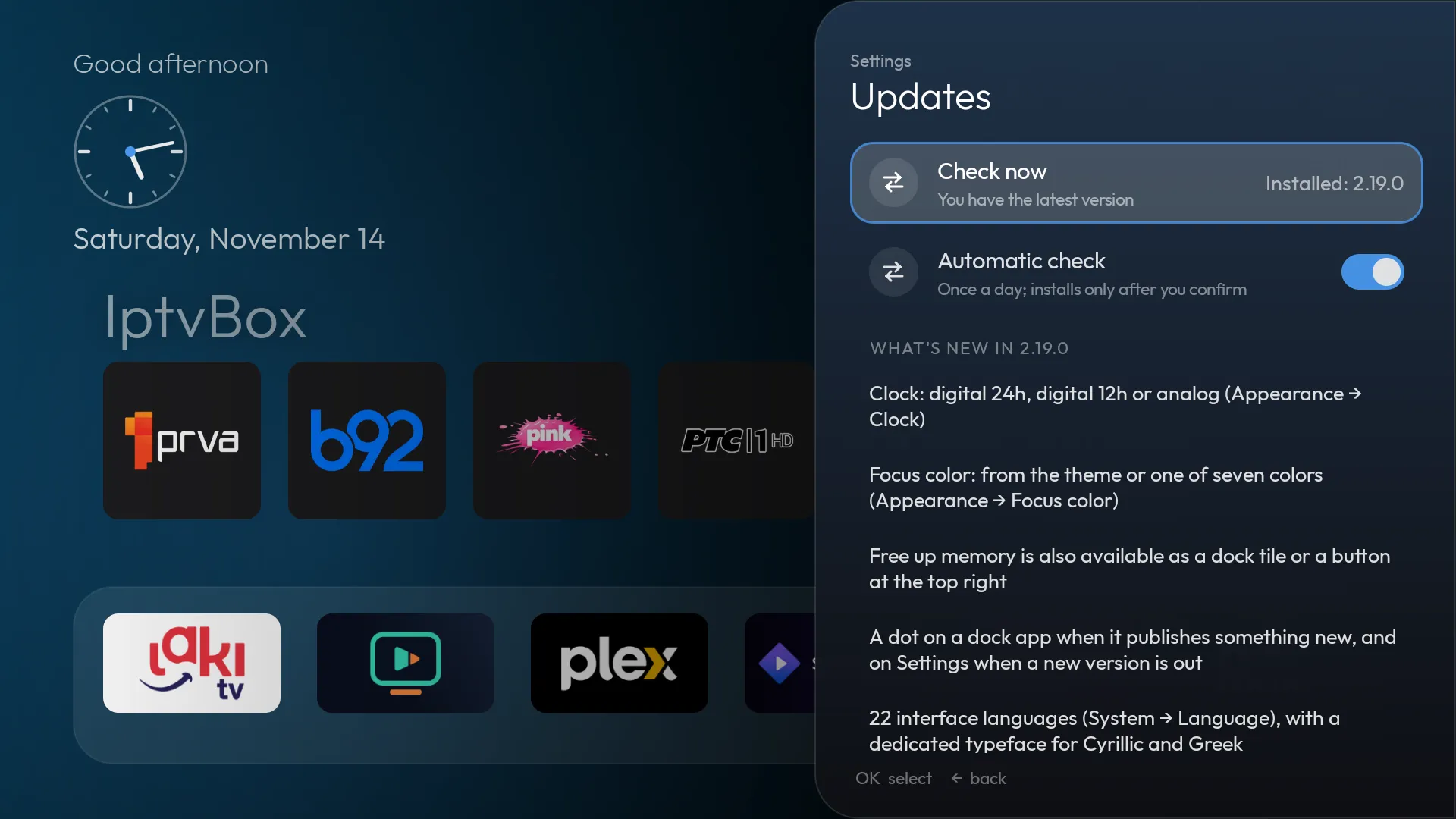
- Check for a new version manually, or automatically once a day
- See the list of changes (“What’s new”) before installing
- Every new APK is verified by SHA-256 and signature
- It installs only after you confirm
- Install without the system promptsystem install
Look and feel
Your style. Your colors.
Built-in themes or your own pictures, day and night themes on a schedule, and a screensaver with a clock that looks good in any room.
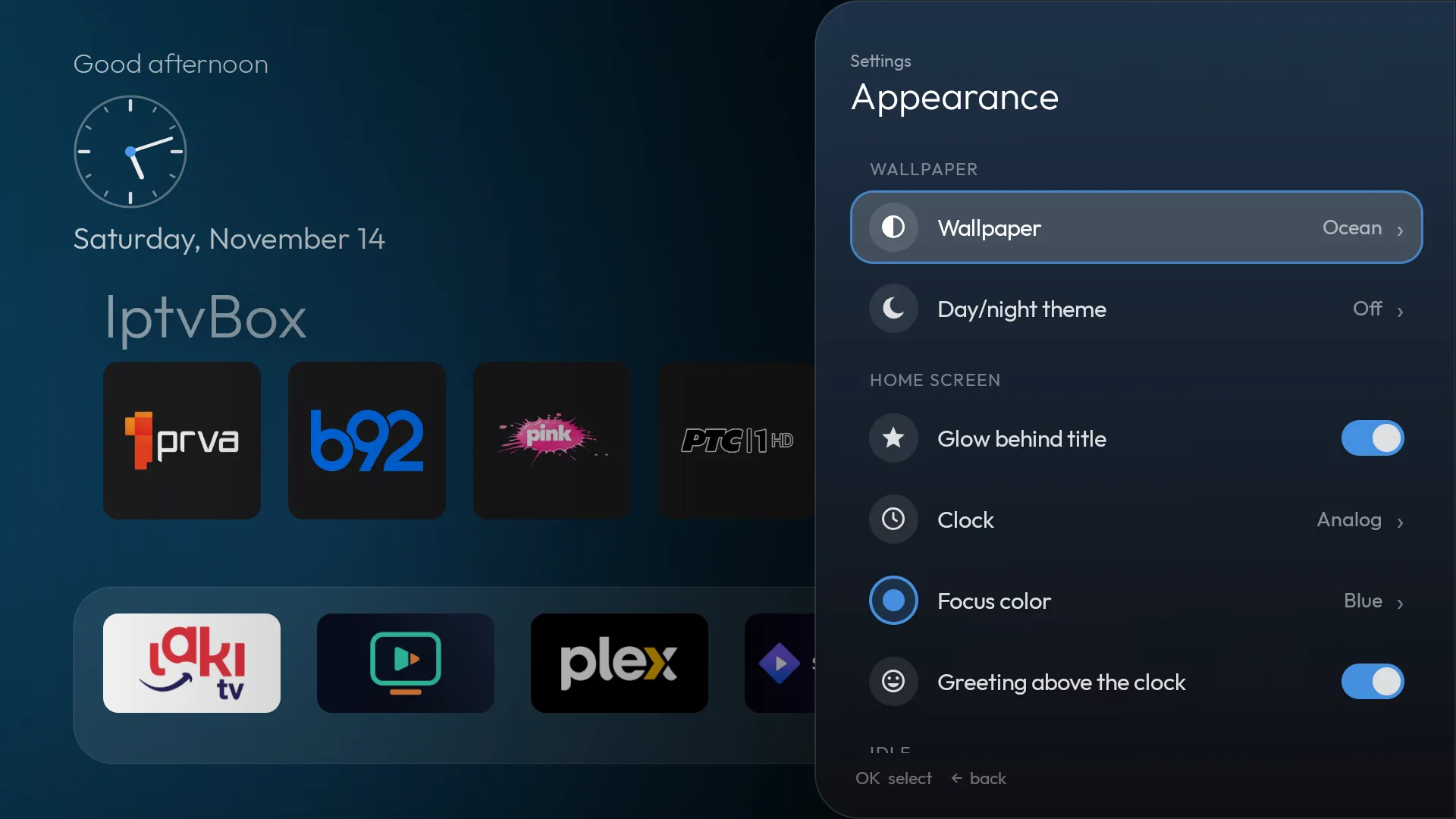
- Solid and gradient themes: Midnight, Ocean, Violet, Emerald, Sunset, Burgundy, Red, Black
- 8 built-in wallpapers the launcher draws itself (Northern lights, Nebula, Ocean, Mountains and more), no pictures or permissions needednew in 2.20
- Your own wallpapers from a folder on the box
- Automatic day and night themes, on hours you choose
- A built-in screensaver with the clock, weather and rotating wallpapers
- Three clock styles and a focus color of your choicenew in 2.19
- Side panel menus with sections, breadcrumbs, icons and switches
System
Full control of your box.
Whatever your box’s firmware hides or leaves out is two clicks away.
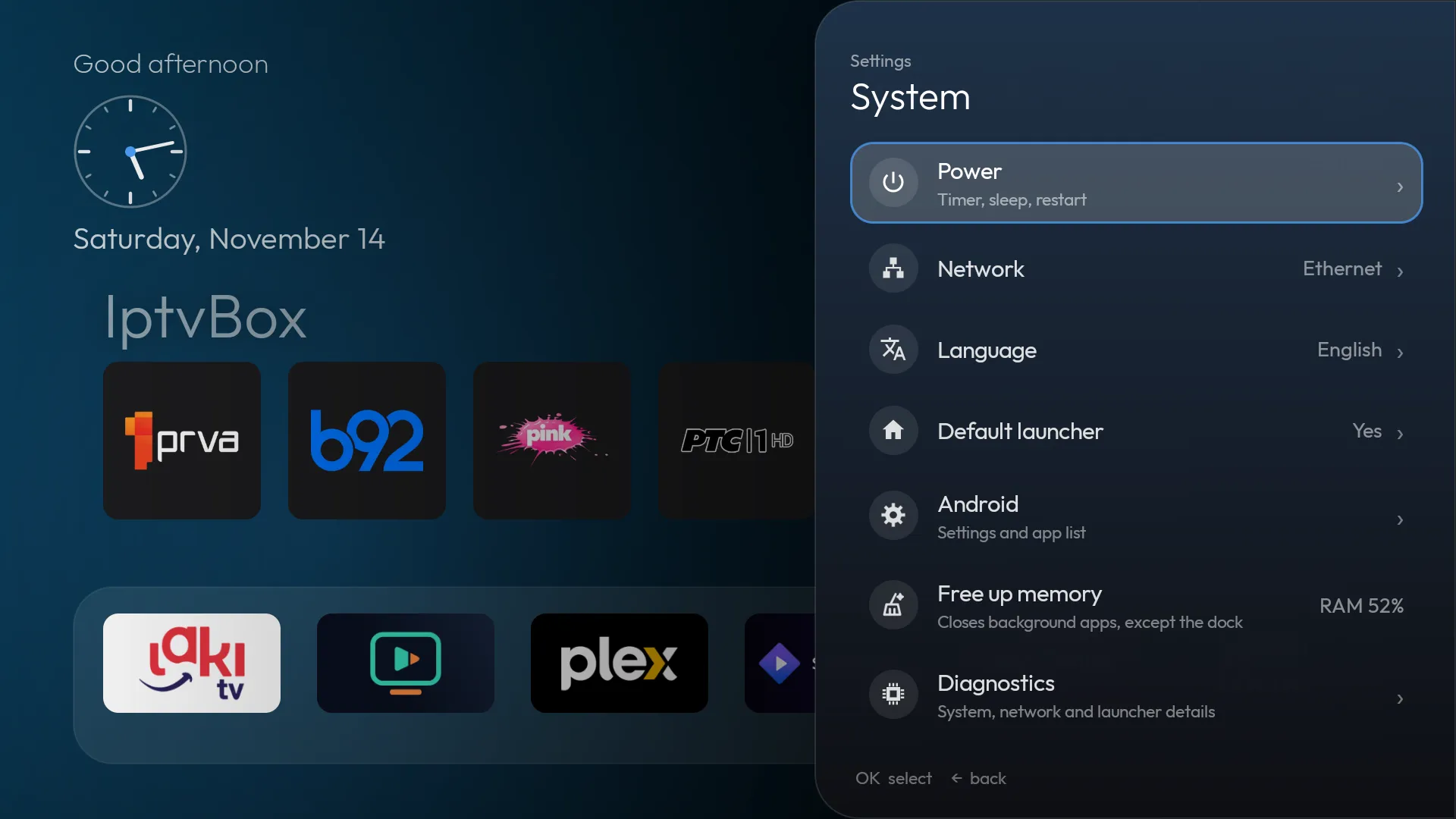
- Free up memory: closes background apps outside the dock and shows how much RAM was freed
- Free up memory as a dock tile and as a button in the top rightnew in 2.19
- Permissions screen: what the launcher may do, what is granted and how to grant it, with the adb command when your box has no Android screen for itnew in 2.20
- Choose the default launcher, even on firmware that doesn’t offer it, with an explanation of what the firmware blocks
- Sleep timer and sleep now (needs one adb command)
- Restart and screensaver selectionsystem install
- A Bluetooth menu with quick pairing
- Keeps Bluetooth LE remotes connected on boxes whose chip doesn’t reconnect them on its own
- Diagnostics: firmware, uptime, memory, storage, temperature, network, Bluetooth, USB, permissions
- Color keys and special remote keys (with a companion service on the box, not part of the APK)
Languages new in 2.19
22 languages.
The launcher follows your Android language, or you can pick one yourself. Cyrillic and Greek get their own typeface.
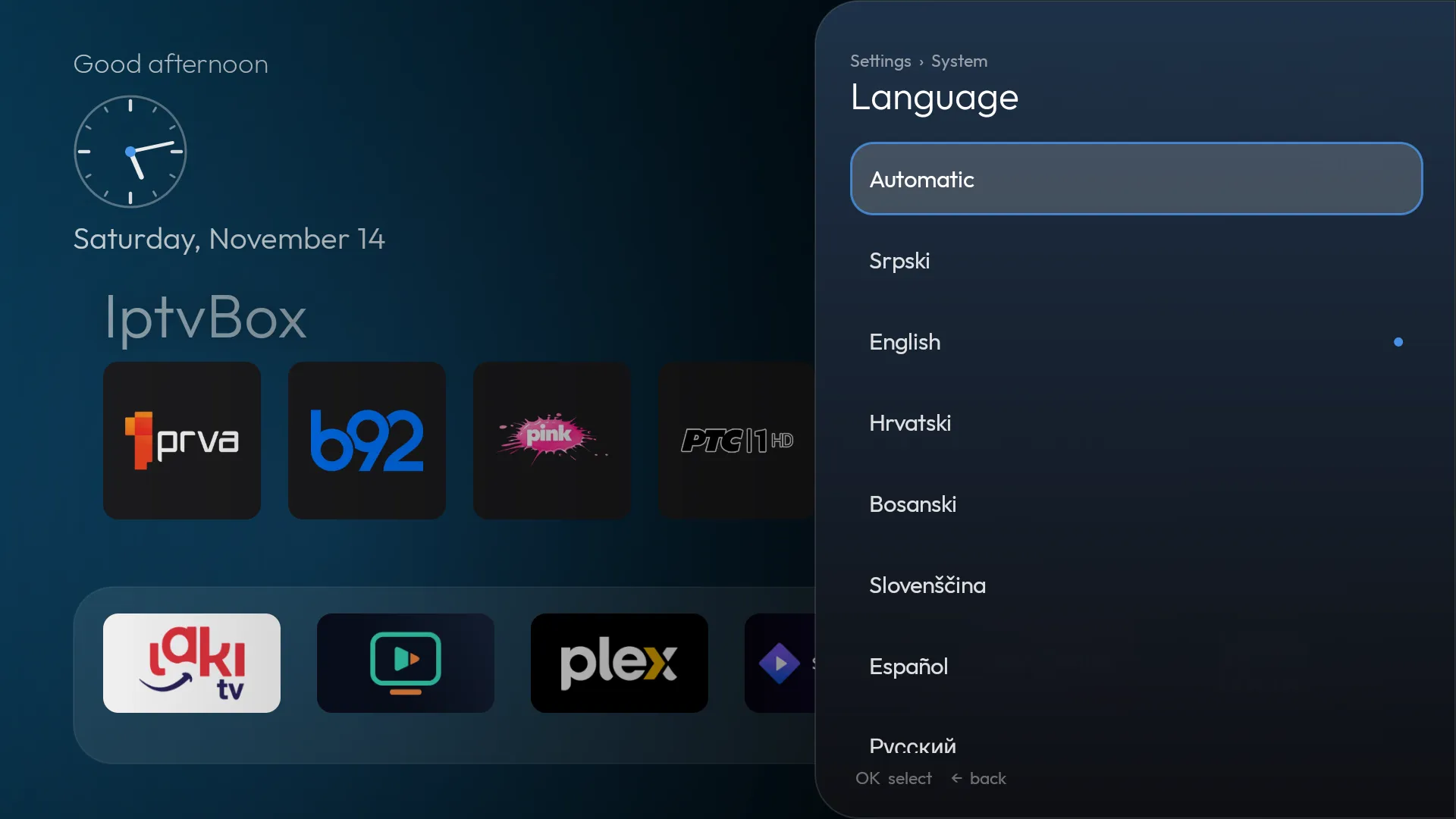
- Srpski
- English
- Hrvatski
- Bosanski
- Slovenščina
- Македонски
- Shqip
- Română
- Slovenčina
- Čeština
- Deutsch
- Français
- Polski
- Türkçe
- Ελληνικά
- Español
- Русский
- Українська
- Português
- Magyar
- Български
- Italiano
Apart from Serbian and English, translations haven’t been reviewed by native speakers yet. If something reads oddly, let us know.
Advanced
What works right away, and what needs more.
Installed as a regular app, the launcher works fully. A few things need a system install (priv-app) or one adb command, because Android allows them no other way.
| Feature | What it needs |
|---|---|
| Preview row with content from every app | System install, ACCESS_ALL_EPG_DATA permission |
| Restart and screensaver selection | System install, REBOOT and WRITE_SECURE_SETTINGS |
| Saving to USB | System install, WRITE_MEDIA_STORAGE |
| Updates without the system prompt | System install, INSTALL_PACKAGES |
| System install from inside the app (System → System installation) | Root access (su); not yet tried on a rooted box |
| Sleep now and sleep timer | One adb command (device administrator) |
| Color keys and special remote keys | A companion service on the box, not part of the APK |
A system install changes your box’s system partition. It’s for advanced users, at your own risk, and doesn’t work on every firmware.
System install guidePlanned
What’s coming.
None of this exists yet. It’s here so you know where the launcher is heading, with no promised dates.
- Folders and categories in All apps
- Wallpapers sent from your phone
- Shortcuts for Wi-Fi, audio output and resolution
- Google TV and Android 12+ support
- Google Play