
For families
Everyone gets their own TV. Kids get only theirs.
One box in the living room and several people in front of it. Launcher profiles give everyone their own home screen, and a PIN guards what kids shouldn’t touch.
Profiles
Your dock. Their dock.
Create profiles like “Mine,” “Family” and “Kids.” Each gets its own dock (one or two rows), app order, hidden apps and theme. Colored profile icons are always on the home screen, so switching takes one click.
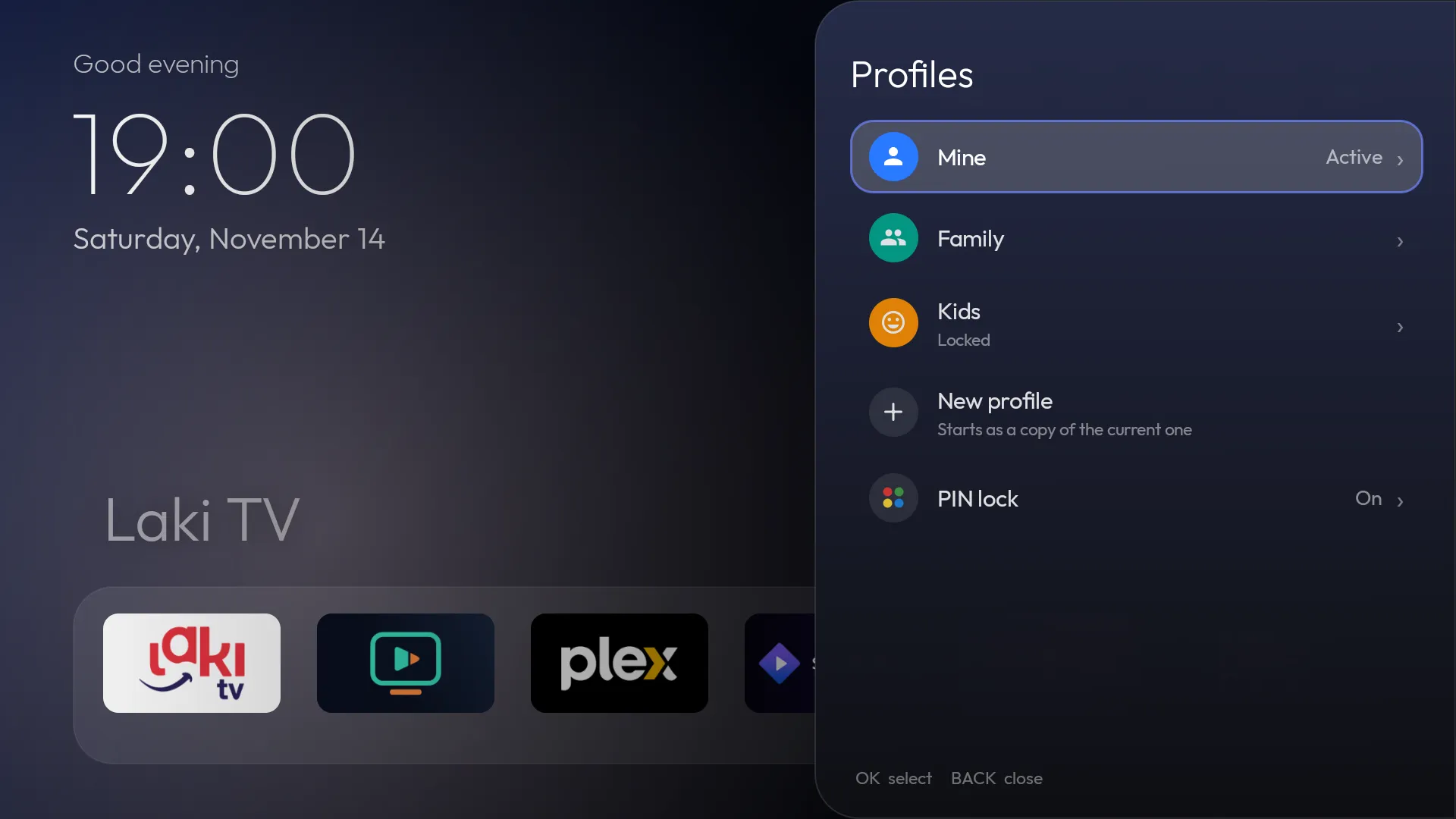
Kids’ profile
Locked, without getting in the way.
Turn on “Locked profile,” and while it’s active, the PIN is asked for:
- launcher settings
- the app menu (move, hide, uninstall)
- switching profiles
- network and Bluetooth
- hidden apps
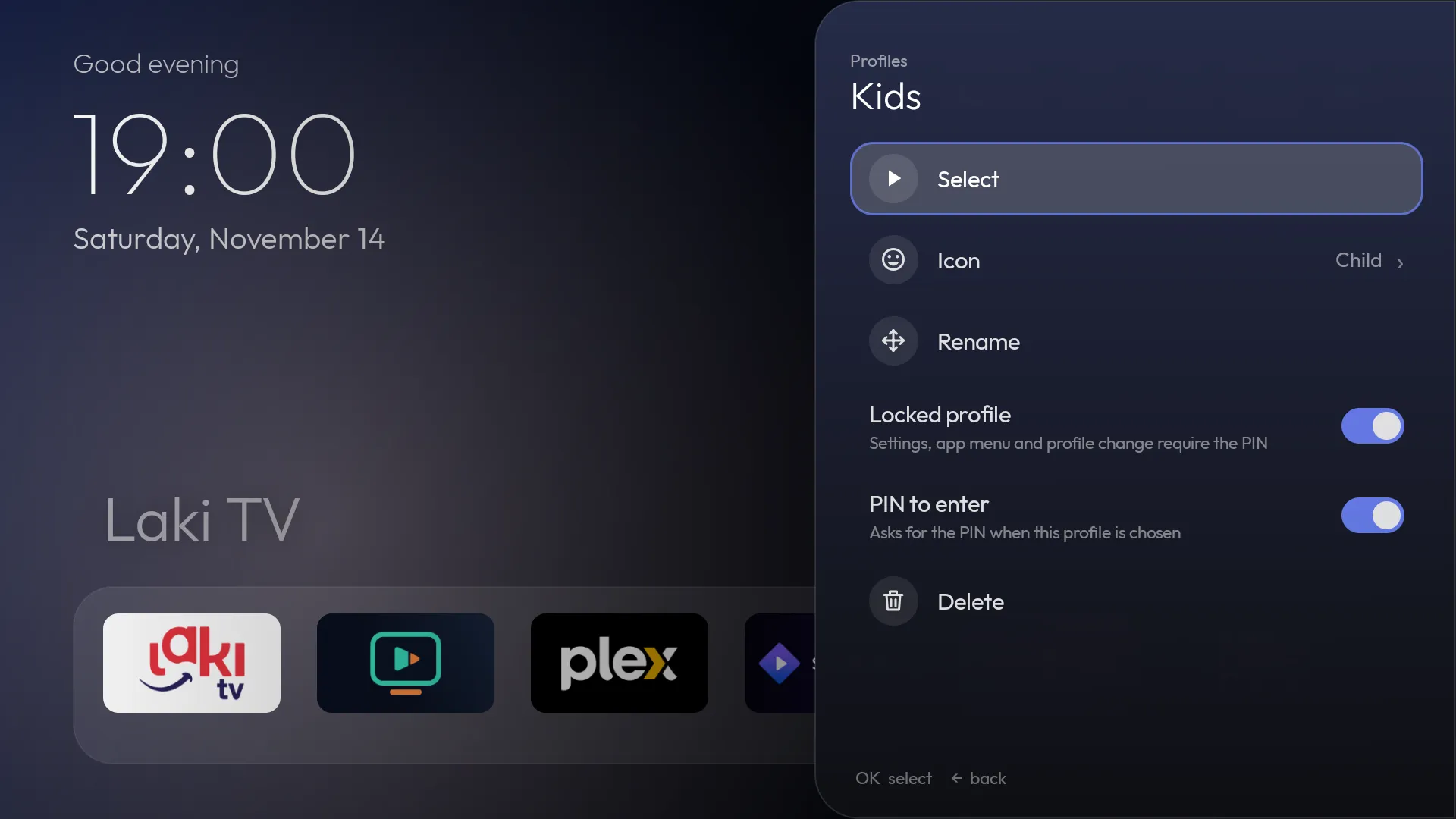
PIN
One PIN, clear rules.
The PIN has 4 to 8 digits and covers the whole launcher. After the right PIN, the launcher stays unlocked for 5 minutes or until an app opens. Five wrong attempts pause input for 30 seconds. “PIN to enter” asks for it as soon as the profile is chosen.
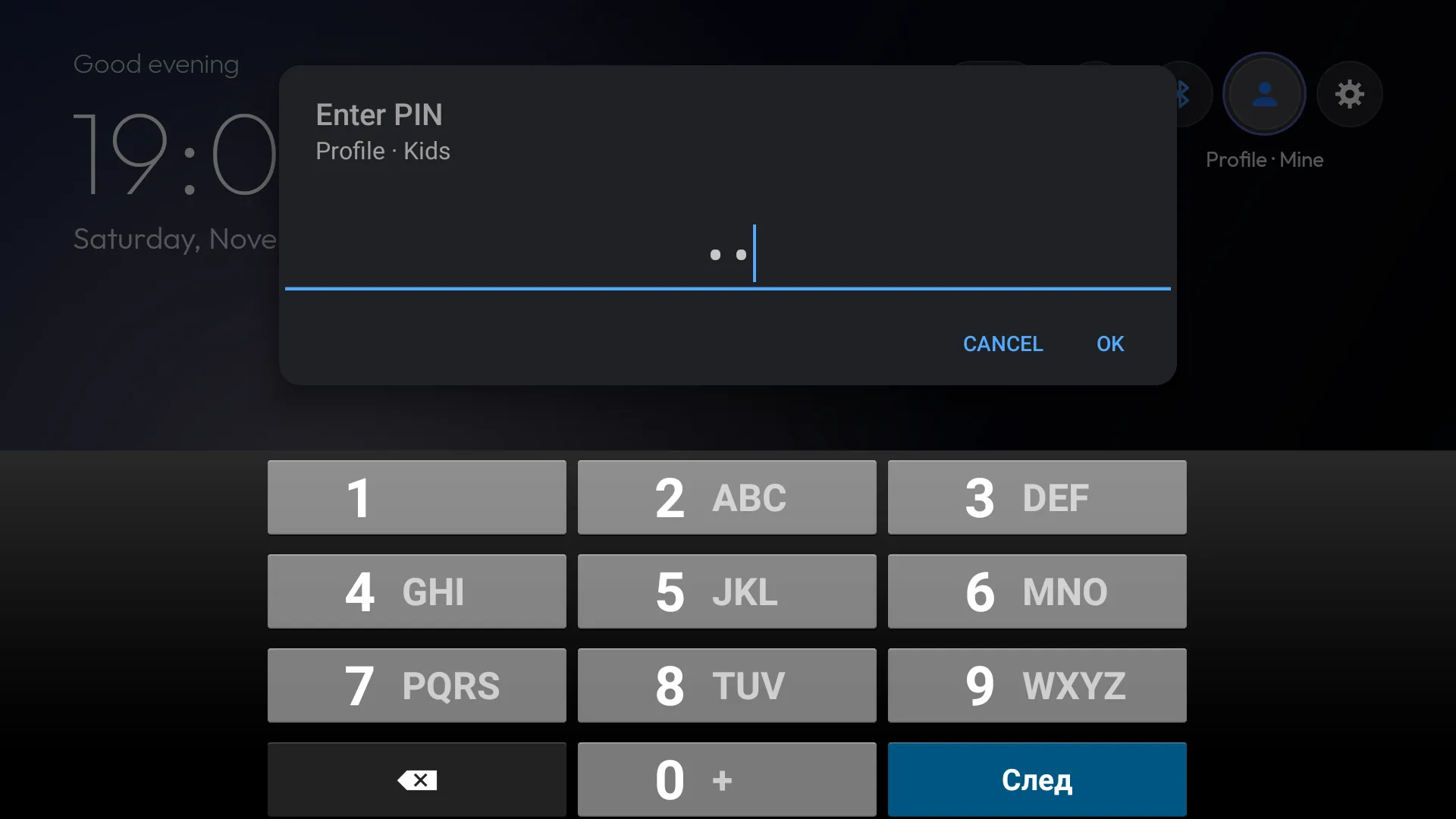
Hidden apps
Hide what kids shouldn’t see. They come back from the “Hidden” tile, which asks for the PIN in a locked profile.
Sleep timer
When it’s enough for today, the box goes to sleep on its own. Setting it up takes one adb command.
The PIN stays on the box
It’s stored only as a salted hash and never goes into a backup.
Set up in a few minutes
- 1
Open the profile icon on the home screen and add a “Kids” profile.
- 2
Set up its dock and hide the apps they shouldn’t see.
- 3
In Profiles → PIN lock, set a PIN of 4 to 8 digits.
- 4
Turn on “Locked profile” for “Kids.”